
Hacksaw
This tutorial covers how to recolor League of Legends VFX (particles) using Hacksaw, a tool built for the custom skin modding community by Martynas.
This tutorial covers how to recolor League of Legends VFX (particles) using Hacksaw, a tool built for the custom skin modding community by Martynas. You'll learn how to open .bin files, adjust colors, and safely save particle changes.
Quartz has a Paint page that recolors
particles in-app. It reads and writes the .bin for you, so you do not need
to set up ritobin_cli. This Hacksaw guide still works and is a fine
alternative, but most creators now reach for Quartz first.
Requirements
HacksawA tool made by Martynas to edit bins.
RitoBinA converter made by Moonshadow to convert .bin to .py.
Step 1: Set Up Hacksaw
- Download and open Hacksaw
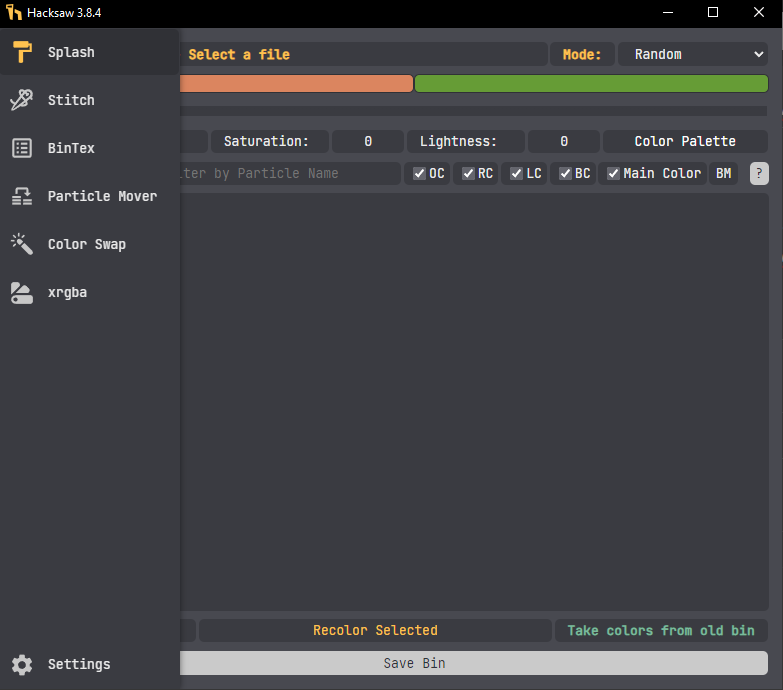
- Go to the Settings tab

- Click on Select Ritobin_Cli

- Select
ritobin_cli.exe
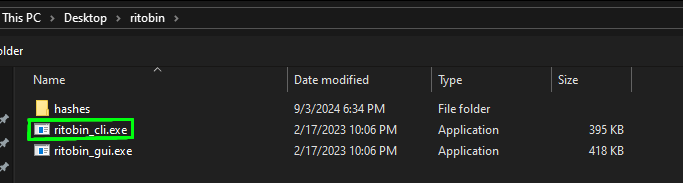
💡 Hacksaw requires
ritobin_clito read and write.binfiles used for visual effects.
Step 2: Locate the BIN File
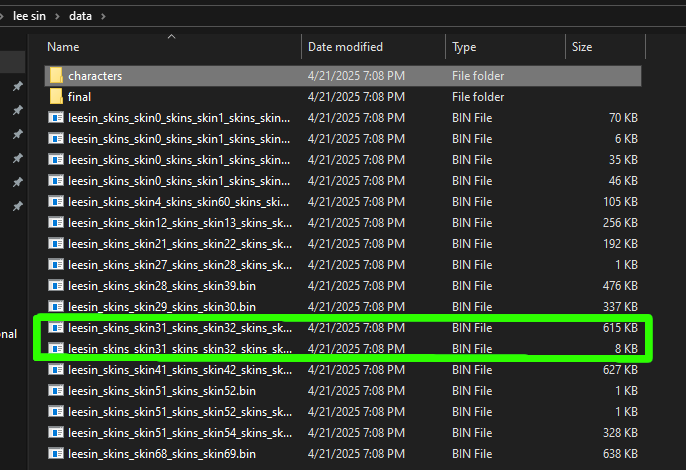
Your particle .bin file will usually be located in one of the following folders:
/yourWadFolder/data/ /yourWadFolder/data/characters/YourChamp/skins/SkinXX/
SkinXX corresponds to your skin's ID.
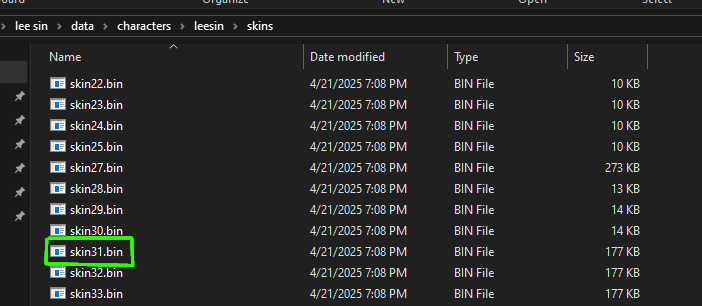
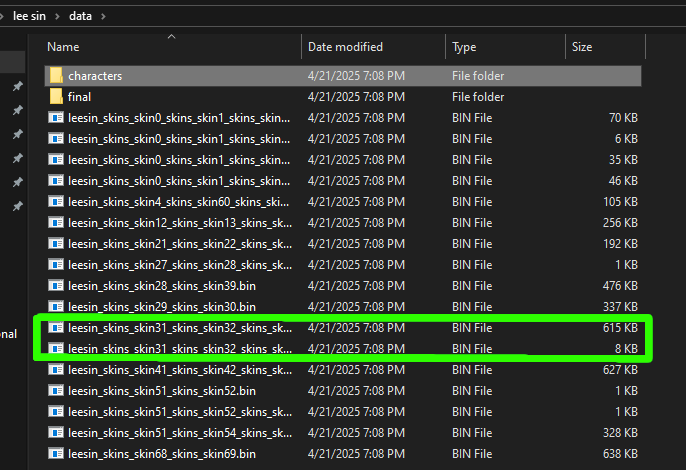
To find your skin number, check the HUD folder. It usually has preview images.
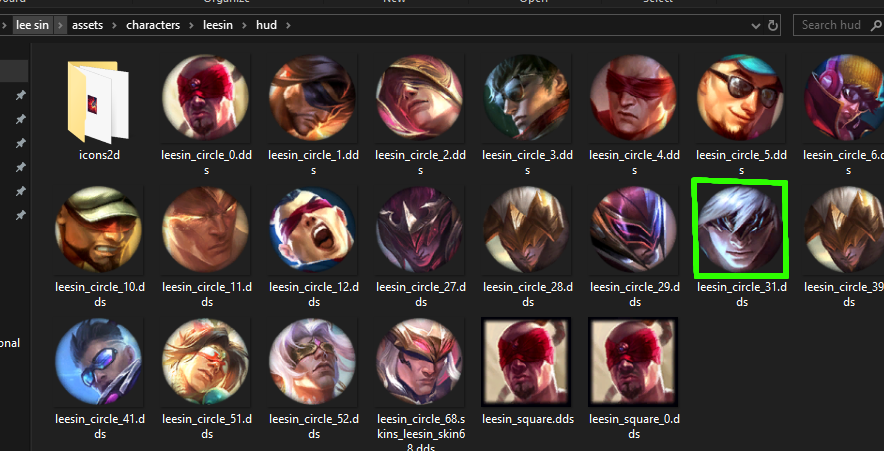
Step 3: Open the BIN File
- Go to the Splash tab in Hacksaw
- Click Open Bin

You'll now see a list of particle entries like:
_Q_mis→ Missile VFX for Q ability_W_tar→ Target hit effect for W_E_cas→ Cast animation for E
💡 Common Naming Terms: mis = missile • tar = target • cas = cast • trail = trail • exp = explosion
Step 4: Recolor the Particles
- Pick your new color using the color palette

- Choose the ParticleSystem you want to be recolored
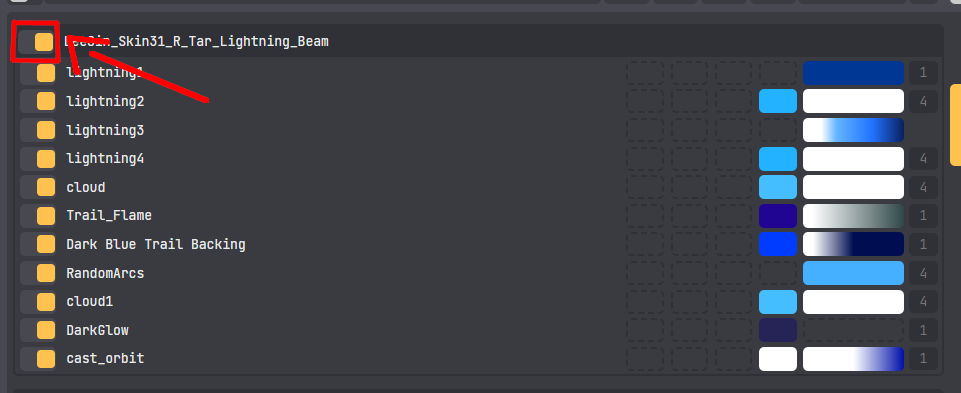
- Press Recolor Selected on the bottom of Hacksaw

- Save your changes by clicking Save Bin

Step 5: Some Particles Use Textures for Coloring
Not all particles are recolored through Hacksaw's built-in color palette. Some VFX effects get their color from an external texture file. It is usually a .dds or .tex in the Particles folder.
What to Do
- Locate the Particles folder:
Assets/Characters/LeeSin/Skins/Skin31/Particles - Open the texture file in Photoshop, GIMP, or any image editing software that supports
.dds - Recolor the texture manually
- Save the edited texture as
.ddsusing BC3 / DXT5 compression - Replace the original file in your Particles or VFX folder
💡 Common texture paths:
Assets/Characters/LeeSin/Skins/Skin31/ParticlesAssets/Shared/ParticlesAssets/Characters/LeeSin/Skins/Base/Particles
Important Tips
Do Not Recolor Black or White (by Default)
Black and white values are often used for transparency in League VFX. Recoloring them may break or hide effects completely.
If you intentionally want to recolor black/white:
- Go to Settings
- Disable "Ignore Black/White Values"
Understanding BlendModes
Each particle uses a BlendMode, shown on the right in Hacksaw:
| BlendMode | Behavior |
|---|---|
| 1 | No transparency, feel free to recolor black/white |
| 3 | SCB transparency |
| 4 | Standard transparency, don't recolor too black or else it will become invisible in-game |
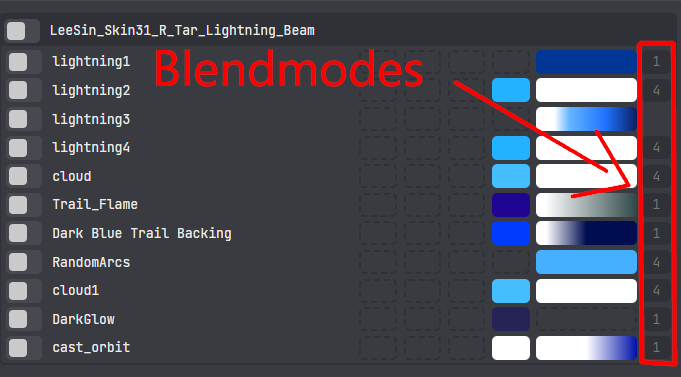
💡 Knowing how blend modes affect rendering helps avoid visual bugs or unintended glows.